
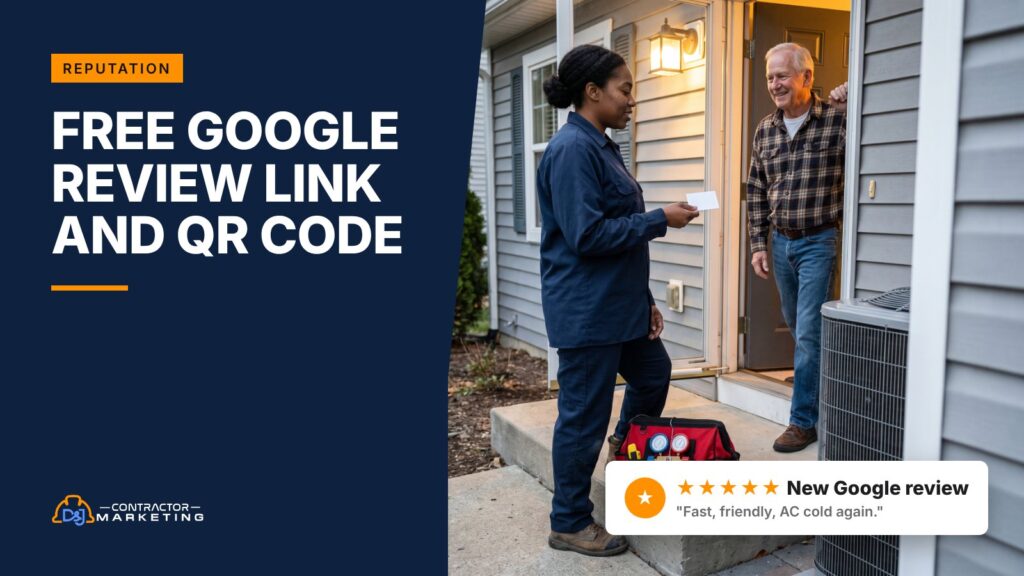
Customers who mean to review you usually get lost at the “search our name, find the button” step. Your Google review link skips all of that and drops them right on the star box. And volume counts: 47% of consumers won’t use a business with fewer than 20 reviews.
The short answer: open your Google Business Profile, click Ask for reviews and copy the link. Paste it below and you’ll get a clean link, a QR code you can print and texts your crew can send today. It works on a phone, and nothing you type is saved.
Key takeaways
- Copy your link from Ask for reviews on your profile. Where to find it
- Don’t send a Maps share link. It opens your listing, not the star box. Link types compared
- If you hide your address, Place ID lookup tools may not find you. The Place ID problem
- The invoice is the first place your QR code belongs. QR placement and print tips
- Text the link the same day the work is done, and follow up once at most. Timing by trade
- Gift cards for Google reviews are out, even though the FTC rule is looser. Google vs FTC rules
How to get your Google review link
Google gives every verified Business Profile its own review link. You don’t need a paid tool or an agency to get it. Here’s where it lives on a computer and on your phone.
On a computer (Google Search)
- Sign in to the Google account that manages your Business Profile.
- Search your business name on Google. Your profile tools show up at the top.
- Click Ask for reviews. A box pops up with your link.
- Click copy. You can also make Google’s own QR code from this box.
On your phone (Google Maps app)
- Open the Maps app while signed in to the owner account.
- Go to your business. Tap Customers, then Reviews, then Get more reviews.
- Copy the link or share it straight from there.
Those menu names come from Google’s own help forum, and Google moves buttons around now and then. If you don’t see them, look for anything that says “reviews” on your profile.
One catch for owners who run the business from their phone: Google says its review QR codes can only be made in a computer browser, not on mobile. That’s why we built the tool above to work on a phone. Paste the link in, and you get the QR code right there.
Which Google review link should you send?
Not every “Google link” opens the review box. Some just open your listing and leave the customer hunting for a button. Most won’t hunt. Here’s how the four common types stack up.
| Link type | What it looks like | Opens the review box? | Use it? |
|---|---|---|---|
| Short link from “Ask for reviews” | g.page/r/ followed by a code and /review | Yes | Yes. It comes straight from Google for your profile. |
| Place ID link | search.google.com/local/writereview?placeid= and an ID that usually starts with ChIJ | Yes | Yes, as a backup if you can’t get the short link. |
| Maps share link | maps.app.goo.gl or a long google.com/maps link | No, it opens your listing | No. Customers have to find the review button on their own. |
| A generator’s own redirect | Someone else’s domain that forwards to Google | Usually | Skip it. If that company shuts down, every card you printed breaks. |
Why skip the redirect? Say you print a few thousand door hangers with a QR code that points to a free tool’s short link. If that tool shuts down or starts charging, the hangers are still on doors and the link is dead.
Our generator never does that. It only cleans up the link you give it and hands back a direct Google address. No redirects through our site, and nothing you type gets saved.
Why Place ID finders fail for service area businesses
A lot of review link generators ask you to type your business name so they can look up your Place ID. That works fine for a pizza shop with a storefront. It often doesn’t work for a plumber who hides his home address.
Many contractors, especially ones who work from home, are set up as a service area business. You list the towns you cover, and Google hides your street address. The admin of the Local Search Forum notes the Place ID lookup method “does not seem to work for SABs.”
There’s a second problem. Google’s own developer docs say Place IDs may change over time, and Google suggests refreshing any ID that’s more than 12 months old. A link you built by hand two years ago might not point where you think.
So here’s what we tell every client: get the short link from Ask for reviews first. Only fall back to a Place ID if that button isn’t showing up for you.
Test your link before you send it
Two minutes of testing beats texting 200 customers a broken link. Run this check once now, then again every few months or any time you change your business name or address.
- Open the link in a private or incognito window. It should ask you to sign in, then show your business name and the star box.
- Open it on a phone that isn’t yours, like your spouse’s or a tech’s. Make sure it lands on the review box, not the map.
- Check that the name at the top is your business, not a similar one across town.
- Scan your printed QR code from arm’s length for cards and invoices, and from across the room for anything on a wall.
- Save the working link in one place your whole team can find, like a pinned note or your CRM.
Don’t post a test review on your own profile. Google’s Maps content policy treats reviews tied to current or former employment as a conflict of interest, and you don’t want that flag on your account.
Make a Google review QR code people will scan
A QR code turns your link into something a customer can use without typing. The trick is putting it where people already look when the work is done.
Here’s where we’d put a Google review QR code for a contractor. Every spot on this list reaches people you actually worked for. Skip truck decals for this; point those at your website instead.
- The final invoice or receipt. Paper or PDF, it’s the one thing every customer opens.
- A leave-behind card on the counter or the thermostat, with a short thank you and the code.
- The job completion or walkthrough sheet the customer signs.
- Your warranty or thank-you packet, the paperwork people keep in a kitchen drawer.
- Your job-complete email, as an image next to the plain link.
A few print tips. Keep the code dark on a plain white background. Leave a clear white border around it, because the phone’s camera needs that quiet space to find the code, and don’t let your designer put a logo in the middle unless you test it first. Add one short line next to it, like “How did we do? Scan to tell us on Google.” A bare code doesn’t tell anyone why they should bother.
If a print shop is making your cards or signs, send them the SVG file from the tool. It stays sharp at any size, from a business card to a poster in your office. The PNG is fine for invoices, emails and your website.
How to send a Google review link customers will open
Send the link while the customer is still glad you showed up, which usually means the same day. The longer you wait, the more the job turns into “that thing we paid for.”
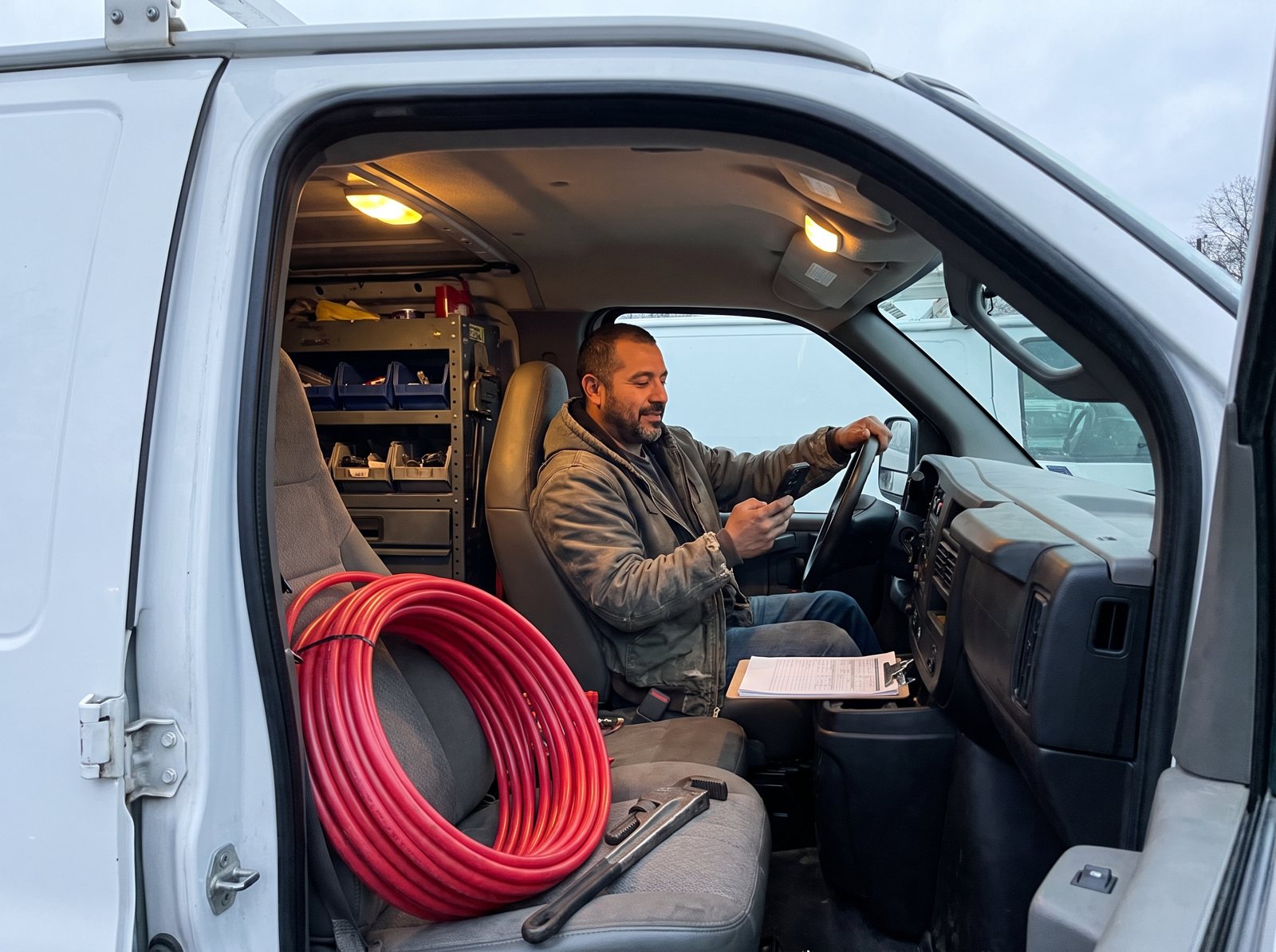
Fresh reviews also count with shoppers. In BrightLocal’s 2026 survey, 44% of consumers said a review posted in the last month was one of the most important things they look at. A steady trickle beats a big push once a year.
Here’s when we’d send it for each trade:
| Trade | Best moment to send the link | Why |
|---|---|---|
| HVAC | An hour or two after the system is running again | They just felt the cool or warm air come back |
| Plumbing | Same day, after the leak or clog is fixed | Relief is highest right after the emergency ends |
| Electrical | Right after the final walkthrough or inspection passes | The job feels finished and safe |
| Roofing | After cleanup and the magnet sweep, not mid-tearoff | Nobody reviews a yard full of shingles |
| Restoration | When the rebuild is done, or at drying sign-off if there’s no rebuild | Wait until the house feels like home again |
| Remodeling | At the final walkthrough, once the punch list is done | Open punch items turn into review complaints |
Ask every customer the same way, then let them write whatever they want.
Text first, email second. A text from the tech or owner by name gets read. An email from “noreply” gets buried. The tool above writes both for you, plus a one-time follow-up text for three days later. Don’t send more than that. One reminder is polite, and anything past that starts to feel like pressure.
The setup we like is simple. The tech mentions it at the door (never hand them a phone or tablet and wait while they type), the office sends the text that afternoon, and the link is printed on the invoice. Three touches, one link, no software needed. If you want the bigger picture, here’s our full system for getting more Google reviews.
What Google and the FTC allow when you ask for reviews
Google’s rules for reviews are stricter than the law. If you follow Google’s rules, you’re in good shape with the FTC too. The reverse isn’t true, and that’s where contractors get burned.
| What you want to do | Google’s policy | FTC rule |
|---|---|---|
| Send your review link to every customer | Allowed | Allowed |
| Give a gift card or discount for leaving a review | Not allowed, even if you don’t ask for 5 stars | Not banned by the 2024 rule unless it’s tied to a positive review, but the FTC says failing to disclose incentives could violate the FTC Act |
| Reward only 5-star reviews | Not allowed | Not allowed |
| Only send the link to happy customers | Not allowed (“selectively solicit positive reviews”) | Not addressed in the 2024 rule, so Google’s ban is the one that bites |
| Give techs a quota of reviews per week | Not allowed | Not covered directly |
| Ask customers to mention a tech’s name | Not allowed (no requests for specific content) | Not covered directly |
| Threaten or pressure someone to remove a bad review | Not allowed | Not allowed (review suppression) |
The Google column comes from the Maps user content policy. It bans incentives, review gating, staff quotas and asking for specific content. The FTC column comes from the 2024 final rule on fake reviews and the FTC’s own Q&A.
The tech-name one surprises people. Some shops run “get your name in a review” contests for their crews, and they mean well, but Google lists that exact thing as not allowed, so we’d drop it. Tell your crew to ask every customer the same way and let the customer write whatever they want.
This isn’t legal advice. If you’re unsure about a promotion, ask your attorney before you run it.
FAQ
How do I find my Google review link?
Sign in to the account that manages your Business Profile. On a computer, search your business name on Google and click Ask for reviews. In the Google Maps app, go to your business and tap Customers, then Reviews, then Get more reviews. Copy the link it shows you.
Why does my link open Google Maps instead of the review box?
You probably copied a Maps share link, the kind that starts with maps.app.goo.gl. That link opens your listing, so the customer still has to find the review button. Grab the link from Ask for reviews instead, or build one from your Place ID with the tool above.
What if I don’t see Ask for reviews?
First, check that you’re signed in to the account that owns the profile and that the profile is verified. Some business types and regions have reviews turned off. If you run more than one location, each profile has its own link, so make one per location.
Do customers need a Gmail account to leave a review?
They need a Google Account, but it doesn’t have to be Gmail. Google says people can set one up with a non-Gmail email address. If an older customer gets stuck at the sign-in screen, that’s usually why. A quick “you can use your regular email” helps.
Can I offer a discount or gift card for a Google review?
Not for Google reviews. Google’s policy bans incentives like payment, discounts or free services in exchange for any review, good or bad. The FTC rule is looser, but Google can still remove the reviews and restrict your profile. A thank-you text is fine. Just don’t attach anything of value to the review.
Can I make a QR code for Google reviews on my phone?
Google’s built-in review QR code only works in a computer browser right now. The tool on this page works on any phone. Paste your link, tap the button and download the PNG for texts and emails, or the SVG for a print shop.
Does my Google review link ever change?
It can. Google says Place IDs may change over time. The short link comes from your profile, but test it every few months anyway, and again after any change to your name, address or category. It takes two minutes.
What to do this week
You don’t need a review software subscription to start. You need one link, one text and a habit.
- Today: copy your link from Ask for reviews, paste it into the tool and test it on two phones.
- Tomorrow: add the link and QR code to your contractor invoice template and save the text script in your phone or CRM.
- This week: send the text to every customer you finish a job for. Every one, not just the happy ones.
- Friday: read what came in and reply to each one. Here’s how to reply to Google reviews without sounding like a robot.
If a bad review lands, reply calmly within a day, then read up on what you can do about a bad Google review, and make sure the rest of your profile is in shape with our Google Business Profile guide for contractors.
Want us to look at the whole picture? We’ll check your reviews, your profile and where you show up on the map, then tell you what we’d fix first. It’s free.


